
Learning objectives
- Explain the difference between a container and a virtual machine
- Recognize images, containers, Dockerfiles, registries, and port mappings
- Pull an image and manage a running Nginx container
- Apply the same workflow independently in a quick challenge
Prerequisites
- A computer with Docker Desktop or Docker Engine installed
- Basic comfort using a terminal
- Permission to run local containers and use ports 8080 and 8081
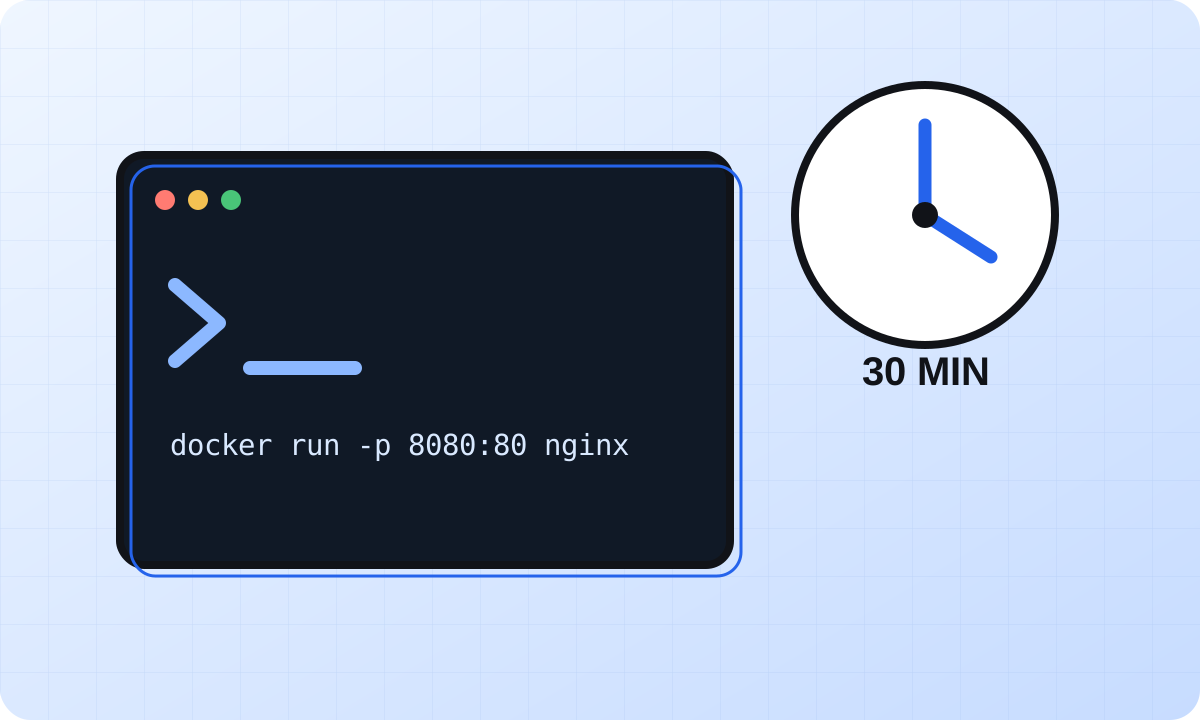
The 30-minute breakdown is an estimated learning plan, not a guaranteed completion time. Pause whenever you need to investigate an unfamiliar concept.
Introduction
Docker is a tool for packaging an application together with the libraries and configuration it needs, then running that package as an isolated process called a container. The same image can run on a laptop, a server, or a cloud platform that supports containers.
A virtual machine emulates a complete computer and includes its own operating-system kernel. A container shares the host kernel while isolating processes, files, and networking. Containers usually start faster and use fewer resources, while virtual machines provide a stronger boundary and can run a different operating-system kernel.
Developers use Docker to make environments reproducible, simplify onboarding, isolate dependencies, and package services for deployment. Docker does not remove the need to understand configuration, security, storage, or networking; it gives teams a consistent unit to manage.
- Image: an immutable package and its metadata
- Container: a running or stopped instance of an image
- Registry: a service that stores and distributes images
Core Concepts
A Docker image is built in layers. Each layer records a filesystem change, which allows layers to be cached and shared. A container adds a small writable layer above the image; deleting the container removes that writable layer unless important data is stored in a volume.
A Dockerfile is a text recipe for building an image. Docker Hub is a public registry containing official and community images. In this lesson, nginx is pulled from Docker Hub rather than built locally.
Containers have their own network namespace. Port mapping connects a host port to a container port. The mapping 8080:80 means requests sent to port 8080 on your computer are forwarded to port 80 inside the container.
At a high level, the Docker CLI sends instructions to the Docker daemon. The daemon pulls or builds images, creates containers, and configures their storage and networking.
- Dockerfile → docker build → image
- Image → docker run → container
- Registry → docker pull → local image cache
- Host port 8080 → container port 80
Hands-on Practice
Open a terminal and run the commands in order. Copy one command at a time so you can connect each command with the state change it creates.
After the run command succeeds, visit http://localhost:8080 in your browser. The default Nginx welcome page confirms that traffic is reaching port 8080 on your computer and being forwarded to port 80 in the container.
docker --versionPrints the installed Docker client version. If the command is not found, install or start Docker before continuing.
docker pull nginxDownloads the official Nginx image and its layers from Docker Hub into the local image cache.
docker run -d -p 8080:80 --name fastech-nginx nginxCreates and starts a detached container, maps host port 8080 to container port 80, and assigns a memorable name.
docker psLists running containers. Confirm that fastech-nginx appears and that the ports column includes 8080 mapped to 80.
docker stop fastech-nginxRequests a graceful stop. The container still exists afterward, but its Nginx process is no longer running.
docker rm fastech-nginxDeletes the stopped container. The downloaded nginx image remains available for future containers.
Quick Challenge
Repeat the workflow without copying the earlier run command exactly. Start a second Nginx container named fastech-nginx-2 and map host port 8081 to container port 80.
Visit http://localhost:8081 and verify the Nginx page. Then list running containers, stop the new container, and remove it. If Docker reports that the name or port is already in use, inspect existing containers before retrying.
- Choose the correct docker run flags
- Use the name fastech-nginx-2
- Map 8081 on the host to 80 in the container
- Verify, stop, and remove the container
You are done when the Nginx page loads at http://localhost:8081 and the challenge container has been stopped and removed.
Continue learning